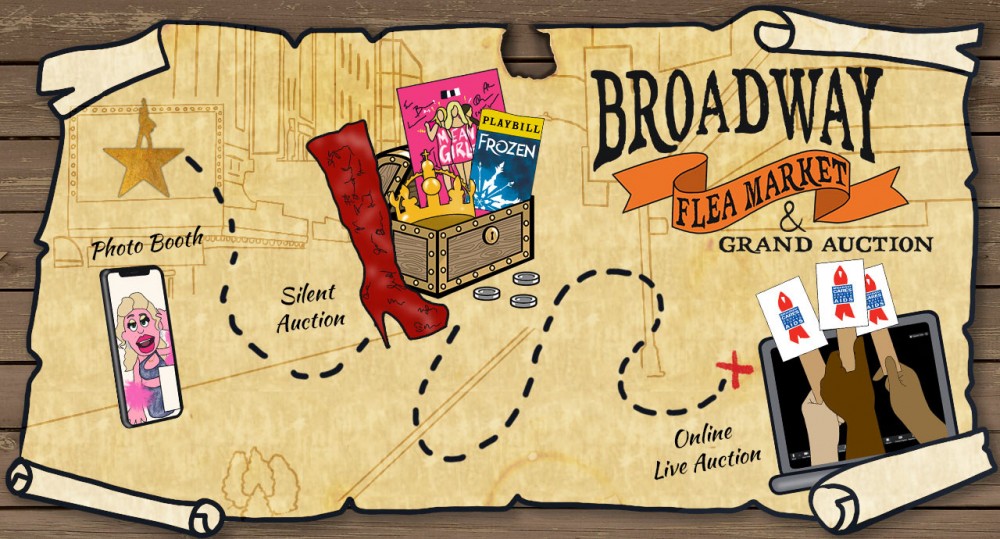
We’ve created our very own system for bidders to participate in a live auction by bidding in the chat box of a Zoom webinar. It’s a grand experiment, but we’ve been rehearsing for weeks and are excited to share this experience with you.
No, it is a Zoom webinar, so you don’t need access to a camera and will not be seen.
You can use a computer or tablet to join the Virtual Live Auction. You can not use a smartphone.
We are happy to provide a proxy bidder! Email Nick Mayo at mayo@broadwaycares.org and he will get you all set up.
Since the live auction is virtual this year, a credit card is required to secure your reservation. The form is encrypted and secure. Should you win an auction, a representative from Broadway Cares will reach out to you by phone following the auction to collect your payment information in whatever form you prefer.
The Virtual Live Auction starts promptly at 5 pm Eastern on Sunday, September 20. We ask that everyone joins us virtually and is ready to go right before 5 pm Eastern. It will last about an hour.
If you win a lot during our Virtual Live Auction, congratulations! A representative from Broadway Cares will reach out to you by phone between 6:30 – 8 pm Eastern, following the auction. At that point, we will collect your payment information in whatever form you prefer.
Yes! If you can’t join us in person or are uncomfortable with the technology to bid in the chat, email Nick Mayo at mayo@broadwaycares.org and he will get you all set up with a proxy bidder.
Use the Q&A feature and your question will be answered right away. You can also call our Virtual Live Auction hotline at 646-965-2388
Call our Virtual Live Auction hotline at 646-965-2388
All virtual meetings must be fulfilled on a mutually agreeable date before December 18, 2020, except for the virtual meeting with Ben Platt, which will be scheduled on a mutually agreeable date between December 1, 2020 – March 31, 2021.
https://youtu.be/9BzMnmd2LLA
- Click on the link in your email to join the Zoom webinar. If you haven”t used Zoom before, you may be prompted to download the “.exe” (Windows) or “.dmg” (Mac) client to run the software. This is a valid download and will get you all set to join the webinar
- In the dialog box that pops up, enter your email address. In the name field, enter your bidder number and full name (ie 52. John Doe). Click “Join Webinar”.
- You may see a dialog box that says “Please wait for the host to start this webinar.
- Once the auction room “opens” you will see an image of last year”s live auction and hear some music.
- Open your chat window by clicking on the “Chat” button on the bottom of your screen. If you do not see the button, you can also open the chat window by hitting “alt-H” or clicking on the “More” menu.
*FYI: You won”t be able to see your own name when you chat. When you post in the chat it should say “Me to All Panelists & Attendees”.
https://youtu.be/uIkmrxqxCkU
- Open Zoom and click “Join a Meeting”.
- In the dialog box that pops up, enter the Meeting ID. In the name field, enter your bidder number and full name (ie 52. John Doe). Click “Join”.
- In the next dialog box, enter the meeting passcode.
- In the next dialog box, enter your email address. Confirm that your name is still displayed with your bidder number (as you entered it in Step 2).
- Click Join Webinar.
- You may see a dialog box that says “Please wait for the host to start this webinar”.
- Once the auction room “opens” you will see an image of last year”s live auction and hear some music.
*FYI: You won”t be able to see your own name when you chat. When you post in the chat it should say “Me to All Panelists & Attendees”.